Understanding the specifics of your motherboard is crucial whether you’re troubleshooting, upgrading, or just curious about the hardware running your system. As the central hub of your computer, it connects all components, and identifying its model and manufacturer can reveal compatibility options for hardware upgrades. This guide explores various methods tailored to different expertise levels, helping you identify your motherboard model using software tools, BIOS, and physical inspection. Beginners and seasoned PC users will find useful, step-by-step instructions here, ensuring accurate motherboard identification without hassle. Whether software solutions appeal to your tech-savvy side or a hands-on inspection suits your analytical skills, this guide encompasses all practical approaches. Get ready to enhance your PC knowledge and optimize your hardware with precise motherboard information. Dive into these techniques and transform your understanding of your system’s nerve center, facilitating better management of your computer upgrades and maintenance.
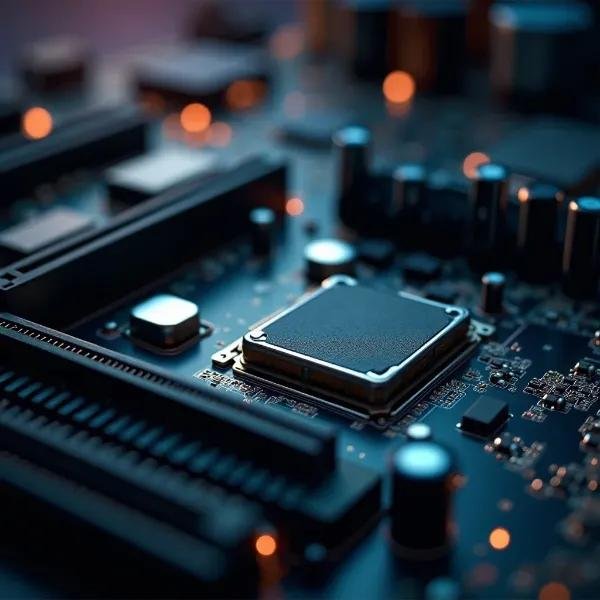
Identify Your Motherboard Using Windows Tools
Check Motherboard Model with Command Prompt
To quickly identify your motherboard model using standard Windows tools, the Command Prompt is an effective option. Start by opening the Command Prompt. Type “cmd” into the search bar and select the appropriate application. Once open, type the command: wmic baseboard get product,Manufacturer,version,serialnumber. Hit “Enter,” and your screen will display crucial motherboard information such as the manufacturer, model number, and serial number. This method provides instant insights into your system’s architecture. While this technique efficiently delivers exact details, ensure you correctly spell the command to avoid errors. This approach suits users who prefer direct, quick solutions without needing additional software installations. Leveraging the Command Prompt reflects a direct interaction with your system, providing accurate hardware data swiftly. Most importantly, it allows users to tap into the basic capabilities of their PC with straightforward commands.
Use System Information Utility in Windows
The System Information Utility offers a comprehensive overview of your PC’s components, including motherboard details. To access this feature, type “System Information” in the Windows search bar and select the program from the list. Once opened, navigate to the “System Summary” section, where a list of information about your computer appears. Look for entries labeled “BaseBoard Manufacturer” or “BaseBoard Product,” which provide manufacturer and model details. This utility is perfect for users preferring a graphical interface over text-based commands. It consolidates key system information in one place, helping users make informed decisions regarding hardware upgrades or troubleshooting. By utilizing the System Information Utility, users have a readily accessible tool that captures vital system insights without needing third-party applications. This built-in Windows feature underlines the convenience of tracking detailed hardware specifications directly from your operating system.
Find Your Motherboard Without Opening the Case
Use BIOS or UEFI to View Motherboard Details
Accessing motherboard details through BIOS or UEFI is a method suitable for those who prefer avoiding physical interaction with their computer’s hardware. To enter BIOS or UEFI settings, restart your computer and press the designated key (often F2, Del, or Esc) during startup, as indicated on your screen. Navigate through the menus to find system information, typically under “Main” or “Information” tabs. Here, you can locate your motherboard model and manufacturer data. This method ensures essential information is at your fingertips without needing software downloads or physical inspections. It caters to users comfortable navigating system firmware interfaces, enhancing their hardware understanding. BIOS/UEFI provides reliable information direct from the system, giving users confidence in the accuracy of motherboard specifications. Discover a method that avoids potential risks associated with opening your PC case, offering secure inspection of hardware details presented directly by the system firmware.
Check Manufacturer Software and Support Apps
Leverage the software provided by your motherboard’s manufacturer for an effortless identification process. Brands like ASUS, MSI, or Gigabyte often have dedicated support applications that offer detailed insights into hardware specifications. Visit the official site of your motherboard’s manufacturer, download the support or utility app, and install it on your PC. Open the application to explore comprehensive details about your motherboard, including model numbers and manufacturer information. This technique provides the precision of manufacturer-specific diagnostics and data presentation, ideal for users who value branded insights. Such applications often include additional features like driver updates and performance monitoring, enhancing your system maintenance capabilities. Manufacturer software simplifies the identification process by offering tailored solutions that resonate with the core features of your motherboard brand, embedding professional insights right at your fingertips.
Identify Your Motherboard by Physical Inspection
Locate the Model Number Printed on the Board
If you’re comfortable handling hardware, identifying your motherboard through physical inspection can be an engaging process. Start by turning off your PC and unplugging it to avoid damage or injury. Open your case carefully, after ensuring its structure is understood, and locate the motherboard. Observe the top side, where model numbers are usually printed alongside manufacturer information. These numbers can be found near the CPU socket or edges of the motherboard. Physical inspection offers the advantage of firsthand verification of motherboard details, revealing registration and authenticity markers directly. Users experienced in hardware engagement often prefer this method for its direct interaction with computer components. This approach highlights the physical attributes of motherboards, offering certainty around hardware specifications and enabling improvements in compatibility understanding for future component upgrades. The tactile process of identifying a motherboard allows users to appreciate craftsmanship while ensuring technical accuracy.
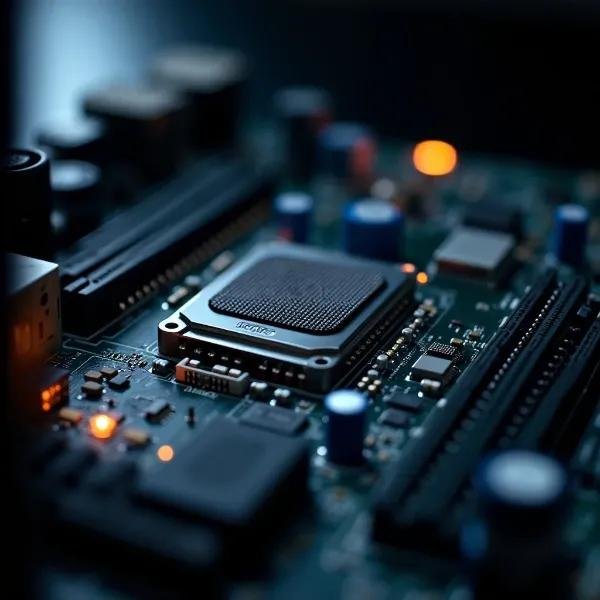
Identify the Manufacturer Logo and Serial Codes
A closer look at your motherboard reveals various components and inscriptions, including manufacturer logos and serial codes, which can help you understand how to figure out what motherboard i have in your system. Typically, logos are prominently displayed near the middle or edges of the board, serving as quick identifiers of the brand. Serial codes often accompany logos or are positioned near ports and the CPU socket, useful for warranty claims or technical support queries. Identifying these elements requires the PC to be powered off and opened, ensuring safety and clarity in inspection. For users wondering how to figure out what motherboard I have without software tools, this hands-on method provides direct confirmation. Recognizing logos and serial codes offers an efficient means of verifying the authenticity and support options associated with your motherboard. A physical examination not only unveils practical motherboard details but also adds depth to your hardware understanding, enhancing technical literacy and enabling informed decisions regarding upgrades. Appreciate the detailed craftsmanship onboard and enjoy direct verification of essential components, confirming your motherboard’s origins and potential support avenues.
Conclusion
Identifying your motherboard is essential for understanding and optimizing your PC system. Various methods cater to different user preferences, whether through software tools, firmware insights, or physical inspections. This guide equips PC users with a thorough understanding to accurately determine motherboard specifications. By leveraging on-system tools like Command Prompt or System Information, and embracing physical inspection, users gain intimate knowledge of their computer’s foundation. Recognizing these details empowers you to make informed decisions for upgrades, troubleshooting, and enhancing PC performance. Use these insights to unlock the full potential of your system, bridging knowledge gaps and optimizing technological engagements. As motherboard information becomes clear, embrace the harmony between software ease and hardware identification, ensuring that your PC stands ready for future enhancements and continued excellence.