Watermarks can make a useful image hard to reuse, present, or repurpose. In many cases, you may need to clean up a draft image, remove a mark from your own design, or restore a licensed asset for a client presentation. AI tools have made that process much faster than the old manual method of cloning pixels by hand, especially when you also want to sharpen the final image and improve overall quality.
This guide walks through a practical workflow for removing watermarks and polishing images with AI. It covers when to use automated tools, what to check before you upload a file, and how to improve the final result so the edited image looks natural instead of patched together.
If you want a quick way to handle visible marks on images you own or are authorized to edit, EzRemove watermark remover is one of the simplest places to start.
After cleanup, you can continue refining the image with an ai photo editor free workflow to sharpen details, improve lighting, and fix small imperfections without switching to heavy desktop software.
When AI watermark removal makes sense
AI watermark removal works best when the watermark sits on top of a textured but predictable background, such as skies, walls, fabric, tabletops, or out-of-focus areas. Modern tools detect the marked region, analyze nearby pixels, and rebuild the missing area in a way that often looks far more natural than a quick manual smudge job.
This is especially helpful for marketers, online sellers, designers, content teams, and bloggers who need fast edits at scale. Instead of spending ten or twenty minutes repairing each image by hand, you can often get a usable first pass in under a minute and then spend your time on final touches.
That said, not every image is equally easy. Large watermarks placed across faces, product labels, or detailed text can still require more cleanup after the AI pass. The best results usually come from starting with a reasonably high-resolution source image and using a tool that lets you enhance the image after removal.
Use AI tools responsibly
Before editing any image, make sure you have the right to modify it. AI cleanup tools are useful for removing marks from your own assets, authorized client files, stock images you have licensed, or drafts exported with test overlays. They should not be used to bypass ownership, copyright, or licensing rules.
That small check matters because a good workflow is not only about speed. It is also about using the right source files in the right context so the finished image is safe to publish, share, or reuse in commercial work.
A simple AI image cleanup workflow
The easiest way to get consistent results is to treat watermark removal as the first step in a broader cleanup process. Remove the unwanted mark first, then improve the image so the repaired area blends with the rest of the composition.
Here is the core workflow many teams use:
| Step | Goal | What to look for |
| Upload the source image | Start with the cleanest file possible | Higher resolution usually gives better repair results |
| Remove the watermark | Rebuild the covered area | Check edges, textures, and repeated patterns |
| Inspect the repaired zone | Catch visible artifacts early | Look for blur, ghosting, or odd color patches |
| Enhance the image | Improve sharpness, contrast, and balance | Make the whole image feel consistent |
| Export and review | Confirm it works in its final use case | Test on mobile, desktop, or print preview |
Step 1: Start with the best source file you have
AI tools can only work with the information available in the image. If you upload a compressed screenshot with jagged edges and visible noise, the tool has less detail to reconstruct. A higher-quality original file usually leads to better filling, cleaner textures, and fewer obvious repair marks.
If you have multiple versions of the same image, use the one with the largest dimensions and the least compression. This gives the AI more surrounding context to sample from, which improves the chances of a natural-looking result.
Step 2: Remove the watermark first
Upload the image into your chosen removal tool and let the AI process the marked area. For a straightforward overlay in the center or corner of the image, the first result may already be good enough for web use. Backgrounds such as sky, wood grain, pavement, soft fabric, and blurred interiors usually respond well to AI reconstruction.
As soon as the result appears, zoom in instead of judging it only from the full-size preview. Some edits look fine from a distance but reveal smudged edges, repeated textures, or awkward transitions around the repaired area when viewed closely.
Step 3: Inspect edges, patterns, and important subjects
Most weak watermark removals fail in the same three places: edges, repeated detail, and human subjects. Hard edges can warp. Repeating patterns can look copied and pasted. Faces, hands, and product shapes can lose realism if the watermark crosses key features.
A quick inspection checklist helps:
| Area to inspect | Common issue | Fast fix |
| Straight edges | Wavy or broken lines | Reprocess or crop slightly |
| Textures | Repeated or smeared detail | Run enhancement after cleanup |
| Skin and faces | Soft or unnatural features | Use gentle sharpening only |
| Product shots | Distorted outlines | Compare against original shape |
| Background gradients | Patchy color transitions | Adjust brightness and contrast |
Step 4: Enhance the image after cleanup
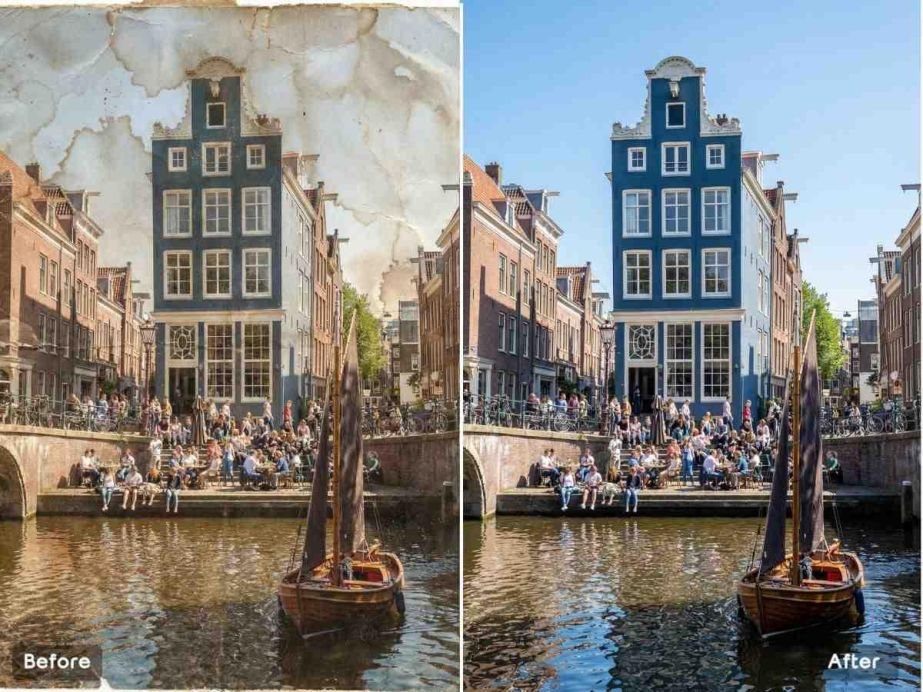
This is the step many people skip, and it is often the reason an edited image still feels off. Once the watermark is gone, the repaired section may be technically clean but visually softer than the rest of the frame. Enhancement helps normalize the entire image so the edited area does not draw attention.
Useful post-cleanup adjustments include sharpening, brightness correction, contrast balancing, and minor color cleanup. In some cases, light denoising helps unify the repaired zone with the rest of the image, especially if the source file was compressed or captured from a screen.
Step 5: Export for the real use case
An image that looks good in the editor preview may behave differently when placed in a product page, blog post, ad creative, deck, or social post. Export the result at the size you actually need and review it in context. This is the simplest way to catch issues that only show up after resizing.
For example, a repair that seems slightly soft at full resolution may look perfectly fine in a blog header, while a tiny visual glitch might become obvious on an ecommerce zoom view. Checking the final placement saves rework later.
Comparing AI tools by workflow fit
Not every tool solves the same part of the problem. Some are better for fast watermark cleanup, while others are better for broader image refinement after the main repair is done.
| Workflow need | Best tool type | Why it helps |
| Remove a visible watermark quickly | Dedicated watermark remover | Focused workflow with minimal setup |
| Improve overall photo quality | AI photo editor | Better for lighting, sharpness, and polish |
| Fix multiple small flaws | Editor with retouching features | Useful for dust, blemishes, and minor artifacts |
| Prepare images for publishing | Tool with export flexibility | Easier to match final size and format |
Common mistakes that make the result look fake
One common mistake is over-sharpening after the watermark is removed. People often try to fix a soft repaired patch by pushing sharpness too far, but that can create halos and make the edited area stand out even more. A moderate adjustment usually looks more natural than an aggressive one.
Another mistake is judging the edit only at one zoom level. Always check both close-up detail and full-image balance. A perfect patch at 300 percent zoom can still look odd if its brightness, texture, or contrast does not match the rest of the image.
Cropping can also be a smarter solution than full reconstruction in some cases. If the watermark sits near an edge and the composition allows it, a slight crop may give you a cleaner final image than a more complex AI repair.
Best use cases for AI watermark removal and enhancement
This workflow is especially useful when you need speed and consistency. Content teams can clean up licensed visuals for blog posts. Marketplace sellers can improve product photos for listings. Freelancers can restore draft images before client delivery. Social media managers can refresh older branded graphics for new campaigns.
It also works well for internal business assets. Presentations, mockups, concept boards, and archived media often contain marks or overlays added during review. AI tools can help turn those rough working files into cleaner presentation-ready visuals without a full design-tool session.
What to do when the first AI result is not enough
If the first result still looks rough, do not assume the image is a lost cause. Try a second pass with a cleaner crop, a higher-resolution file, or a different tool emphasis. Some images respond better when the removal pass is followed by enhancement, while others benefit from a tighter crop that reduces the complexity of the repaired area.
You can also reduce the visibility of minor issues by resizing the image for its target placement. A tiny artifact that is noticeable on a full-screen preview may disappear completely at blog or social dimensions.
A practical workflow for better final quality
If you want a repeatable process, keep it simple:
- Confirm you have permission to edit the image.
- Upload the highest-quality source available.
- Remove the watermark with a dedicated AI tool.
- Zoom in and inspect the repaired area closely.
- Enhance the full image to unify sharpness and tone.
- Export at the final size and review it in context.
This sequence helps you avoid the two extremes that waste time: publishing an image too quickly before checking the repaired area, or over-editing it until it stops looking natural.
Final thoughts
AI tools have made image cleanup much more practical for everyday content work. You no longer need advanced retouching skills to remove a watermark from an authorized image and improve the final presentation. The key is to treat removal and enhancement as part of the same workflow, not separate tasks.
Start with the cleanest file you can find, remove the unwanted mark, inspect the details, and then polish the whole image so the result feels balanced. When you follow that order, AI can save time without making the image look artificial, which is exactly what most publishing and creative workflows need.
To pick up a draggable item, press the space bar. While dragging, use the arrow keys to move the item. Press space again to drop the item in its new position, or press escape to cancel.