Goodnotes is the most balanced pick for most iPad owners, but the best iPad note taking apps split by what you actually do with them. A student scribbling mid-lecture, a researcher living inside PDFs, and a Windows user who wants their notes on a laptop are looking at three different apps.
The apps below are grouped by workflow, not by brand. Each section answers the same three questions: how does the handwriting feel, how deep does PDF work go, and where do notes sync? Prices are included because the free tiers differ more than most lists admit.
Eight apps cover the useful range: Goodnotes, Notability, Apple Notes, OneNote, CollaNote, MarginNote, LiquidText, and MyScript Notes.
The three questions that separate these apps
Handwriting feel, PDF workflow, and syncing decide everything else. Every app on this list does all three acceptably. The ones worth paying for do one of them exceptionally, and the free ones hide a limit inside one of them.
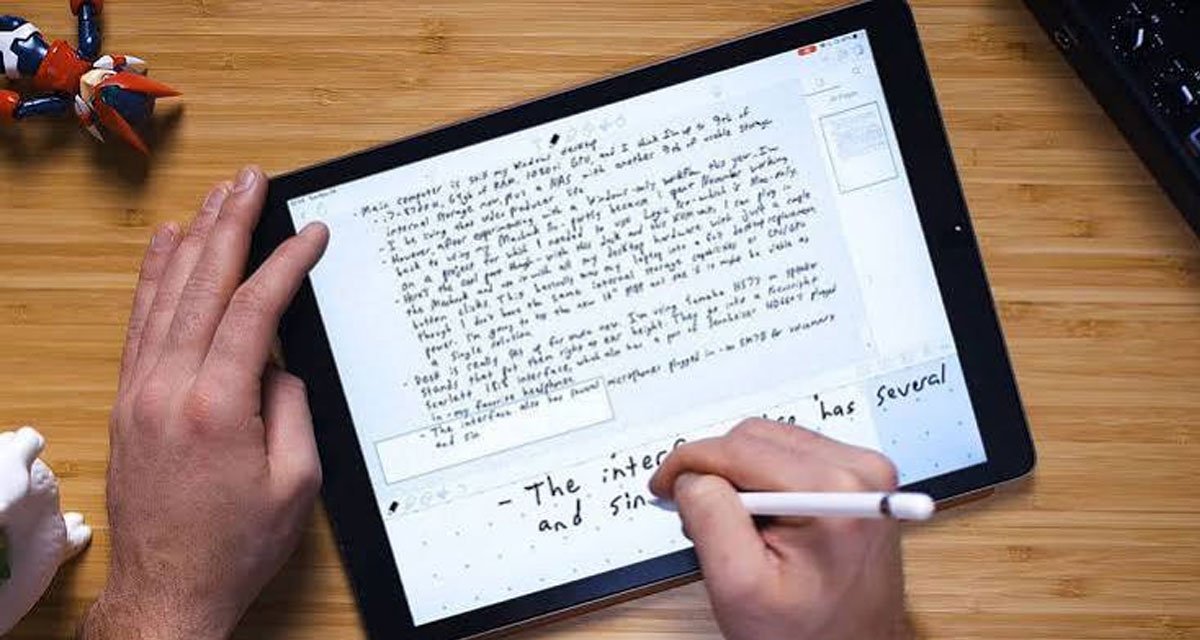
Handwriting feel is subjective, which is why reviews disagree so sharply. One person’s “crisp ink” is another’s “laggy stroke.” Paperlike, which tests these apps hands-on, rates Goodnotes and Noteshelf as having the most natural pen feel, with Notability close behind and CollaNote visibly rougher.
PDF work is the least subjective. MarginNote and LiquidText are built around documents, while Apple Notes treats imported PDFs as attachments you have to open separately. If course slides or academic papers are your daily material, this question alone narrows the field.
Syncing is where free plans get you. Goodnotes syncs through iCloud, Notability runs its own cloud, and OneNote syncs everywhere including Windows, which no Apple-focused app can claim.
Goodnotes vs Notability: the head-to-head
Goodnotes wins for organization, Notability wins for speed. That is the whole argument in one line, and it has been for years.
Goodnotes starts with a notebook metaphor: folders, subfolders, and notebooks you can nest ten layers deep, a stress test Paperlike’s hands-on review ran without the app breaking. Its handwriting recognition makes scribbled notes searchable, PDF annotation is strong, and the free tier lets you try it with up to three notebooks before you pay. Beyond the basics, the Whiteboard gives an infinite canvas for mind maps and diagrams, and audio recording plays back in sync with your handwritten notes, so a recorded lecture replays with your scribbles appearing on the page in time. Pricing per the App Store listing (2026): $11.99 a year for Essential, $35.99 a year for Pro, or a $35.99 one-time purchase on Apple devices. The trade-off is that the one-time price does not cover Windows or Android, which need their own subscription.
Notability opens straight into a blank page, no setup screen, and that instant start matters more than it sounds in a lecture. It has native split-screen for two notes at once, which iPadOS multitasking does not give you out of the box, and the Pencil tool covers drawing and sketching alongside handwriting. Audio recording syncs to what you write, so tapping a word replays the recording at that moment, and Notability Learn turns your own notes into quizzes and flashcards, per the company’s announcement. Pricing starts free; Plus runs $7.99 a month or $20 a year, Pro $99.99 a year, per Notability (2026). Its free tier carries a monthly edit limit that the app does not disclose, which has frustrated students on r/ipad.
Long-time users in the same threads describe Goodnotes as the balanced choice and Notability as the fast one, and neither camp reports switching permanently.
By the end of a semester the difference shows. A student who imported 200 pages of lecture slides into Goodnotes can bury them under folders, subfolders, and notebooks and still find one slide in seconds, because handwriting search covers the scribbles too. The same library sits flatter in Notability, and its handwriting search is weaker, which makes audio sync the compensating feature. Choose by which failure you can live with: losing a slide, or losing the recording’s place.
What the free options actually give you
Three apps cost nothing and are worth using as-is. One of them is genuinely unlimited, one is built into the iPad, and one is a collaboration tool that hides a bargain.
OneNote: the genuinely free cross-platform option
OneNote is free with no note limit and no ads, and it syncs across iPad, Windows, Mac, Android, and web. For students whose school provides a Microsoft account, it is already there, as a commenter on r/ipad pointed out. Microsoft’s own OneNote page pitches it as a freeform canvas where text, ink, and images sit anywhere on the page, and the iPad version handles the Apple Pencil well enough for everyday notes. The Draw tab hides a detail no other app matches: its ink color selector offers galaxy, marble, and glitter colors, per Paperlike’s hands-on review. AI features exist through Microsoft Copilot, but only as an add-on to a Microsoft 365 subscription.
The reputation is more complicated than the price. A user on r/ipad who has used OneNote since 2010 remembers the app going through a badly neglected stretch around 2017, when a lot of people moved away from it; another member answers that as a free app it remains excellent. Both are describing the same history.
Apple Notes: free, built in, and smarter than people expect
Apple Notes ships on every iPad and costs nothing. The handwriting tools are solid, Smart Folders sort tagged notes automatically, and built-in OCR makes handwritten notes and scanned pages searchable, per Apple’s own documentation. Quick Notes captures a thought from anywhere without opening the app, and interactive checklists and tables work better here than in most paid apps.
The limit is PDFs. Imported files behave like attachments, so annotating means opening the Markup tools inside the file and copying results back. For typed notes, checklists, and light handwriting, free is hard to argue with.
CollaNote: free, with real-time collaboration
CollaNote lets several people write and draw on the same note at once, watching changes appear live. Study groups splitting up reading notes are its natural audience, and no other app on this list does native real-time collaboration. It is free, with a $13.90 one-time purchase for Premium, per the developer (2026).
The writing feel is serviceable, not great, and the interface is busier than Goodnotes. For a group that needs one shared page, the trade is worth it.
For PDFs and research: MarginNote and LiquidText
These two apps exist for people whose notes come out of documents. Both split the screen between a PDF and a workspace, and both turn highlights into something structured.
MarginNote is the more rigid of the two, and the more powerful for study. In Study mode your document sits beside a mind map, and everything you mark gets organized into the map automatically. Flashcards generate straight from mind-map nodes, so exam prep stays inside the app, and Review mode pulls just your highlighted material together for a pass before a test. The free version is reader-only; Pro costs $12.99 one-time and Max $51.99, adding Mac support and OCR, per MarginNote (2026). The learning curve is steep, and users on r/ipad describe it as hard to get used to and extremely useful once you do.
LiquidText is the flexible alternative. You pull excerpts out of the document into an infinite workspace, group and connect them, and compare up to three documents at once. Auto-Cite and an in-document AI assistant are recent additions. The free plan covers basic use; Pro is a $79.99 one-time purchase, and LIVE is $9.99 a month for cloud features, per LiquidText (2026). MarginNote suits structured study, LiquidText suits open-ended research, and they answer to the same workload.
For handwriting that becomes text: MyScript Notes
MyScript Notes, formerly Nebo, is the only app here where handwriting and typed text share the same line without switching modes. You can write with the Apple Pencil and type mid-sentence, and a live preview shows what the app is reading from your strokes before you finish. Cursive and sloppy writing convert with unusual accuracy, and a single purchase covers up to ten devices across platforms, per MyScript. It costs $1.99 a month, $7.99 a year, or $24.99 one-time after a 7-day trial, per MyScript (2026).
The weak spot is organization, which stops at three levels, and there are no templates. For people who handwrite everything and want clean text out of it, this is the pick.
Picking the best iPad note taking apps for your workflow
Match the app to the workflow: Goodnotes for daily handwriting, Notability for fast capture with audio, OneNote for Windows users, MarginNote and LiquidText for PDF research, MyScript Notes for handwriting conversion, and CollaNote for shared study pages.
“Everything is good in some way, just choose the one that fits. I think Goodnotes is the most balanced.”
– r/ipad, July 2026 (3 upvotes)
The matching rule in full:
- You handwrite every day and want one complete app: Goodnotes.
- You need to capture fast, mid-lecture, and record audio with your notes: Notability.
- You only type, or you want zero cost and zero setup: Apple Notes.
- You also use a Windows laptop or a school Microsoft account: OneNote.
- Your work is PDFs and exams: MarginNote.
- Your work is open-ended reading across documents: LiquidText.
- You want handwriting converted to clean text: MyScript Notes.
- A study group shares one page: CollaNote.
One habit settles most of the doubt: start free. OneNote and Apple Notes cost nothing, so use one of them for two weeks and confirm you actually write by hand every day before paying for Goodnotes or Notability. A five-minute video walkthrough of each finalist settles the handwriting feel question faster than any spec sheet. Then read the free tier’s small print twice, because the limits are the real pricing: Goodnotes caps you at three notebooks, Notability caps monthly edits without saying the number, and CollaNote’s free version is the one that keeps almost everything.
Two price notes worth carrying. Goodnotes’ one-time purchase only covers Apple devices, so Windows users pay again. And Notability’s free tier hides its monthly edit limit, so a heavy note-taker can hit a wall mid-semester without warning.
Most people who switch apps do it in the first month. The one that survives that month is the one to keep.
Frequently Asked Questions
Which app is best for taking notes on an iPad?
Goodnotes is the best all-around choice for most iPad owners, with the strongest organization and natural handwriting. Notability wins for speed and audio-synced notes, and OneNote is the best free option for anyone with a Windows device.
Is Goodnotes or Notability better?
Goodnotes is better for organization and long-term note libraries, while Notability is better for fast capture and audio recording that syncs to your writing. Students who record lectures lean Notability; students who build structured notebooks lean Goodnotes.
Is Goodnotes free on iPad?
Goodnotes is free for up to three notebooks, then $11.99 a year for Essential or $35.99 a year for Pro. A $35.99 one-time purchase covers Apple devices only, and Windows and Android need a separate subscription.
Is there a better app than Goodnotes?
For specific workflows, yes: Notability records lectures better, MarginNote and LiquidText handle PDF research better, OneNote syncs with Windows better, and MyScript Notes converts handwriting to text better. For the best iPad note taking apps as an all-round package, Goodnotes still leads.