Apple’s Live Photo is one of the most amazing features, allowing you to capture a few seconds of motion and sound before and after you take a picture. Unlike static images, live photos create a short moving memory that brings your moments to life. However, you may sometimes encounter issues when these live photos not working on iPhone, fail to play, disappear, or cannot be captured properly.
Fortunately, several photo repair workarounds are available online that you can try to fix issues with live photos on your iPhone. This guide explains the common reasons behind the problem and provides effective solutions to get Live Photos working again.
Why Are Live Photos Not Working on iPhone?
Before diving into photo repair workarounds to fix live photos not working on iPhone, it’s important to understand what may be causing the problem. Live Photos may stop functioning due to:
Disabled Live Photos Option: If the Live Photos option is turned off in your camera settings, it may stop capturing motion and sound.
Low Power Mode Restrictions: When Low Power Mode is enabled, the iPhone may disable Live Photos to conserve battery and improve performance.
Software Glitches or Bugs: Sometimes, temporary system error or software bug can interfere with camera functions and cause Live Photos to malfunction.
Incorrect Camera Settings: Misconfigured camera settings may prevent Live Photos from being captured, saved, or displayed correctly.
iOS Update Issues: Incomplete, outdated, or problematic iOS updates can introduce bugs that affect Live Photos functionality and cause errors like no sound in iPhone Live Photos.
Problems with Third-party Apps: Some third-party camera, editing, or sharing apps installed on your iPhone may not fully support Live Photos, causing compatibility issues.
How do I Fix Live Photos Not Working on an iPhone?
Irrespective of the above reasons for the live photos not working on iPhone issue, there are several photo repair workarounds available to fix the problem. Let’s discuss these fixes in detail:
Method 01: Check If Live Photos Is Enabled
One of the main reasons why issues like live photos not working occur on iPhone is due to the disabled feature. If the Live Photos option is turned off on your iPhone, you may encounter problem while capturing them. To check:
Firstly, open the Camera app on your iPhone.
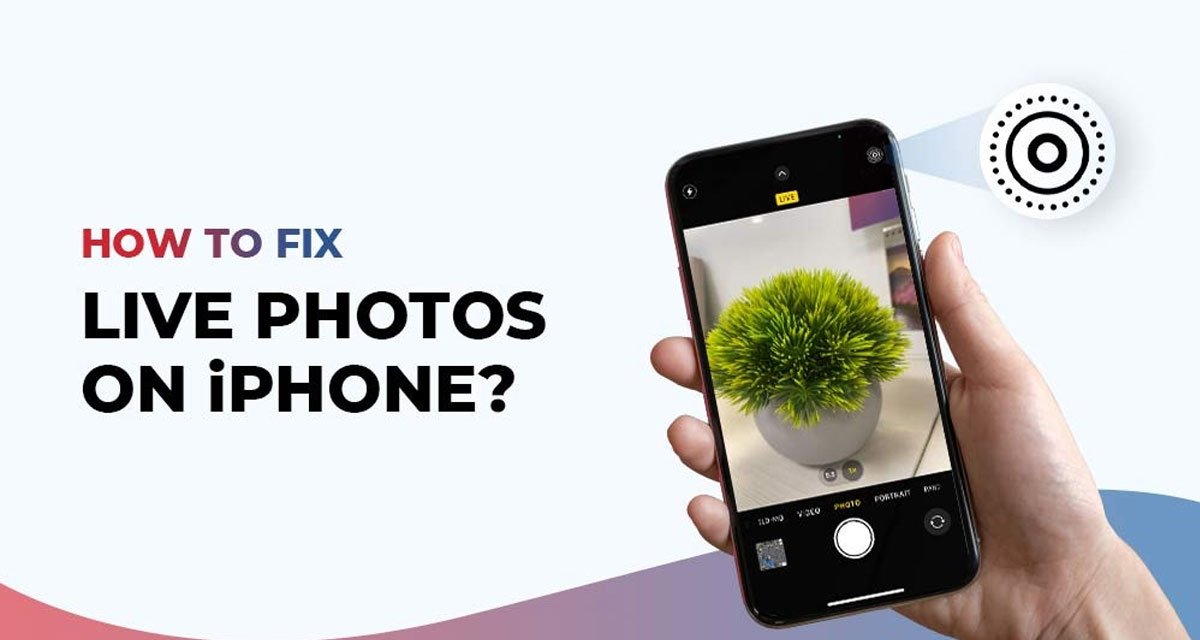
Look for the Live Photos icon (a circle surrounded by rings) at the top of the screen.
If there is a slash in that icon, it means Live Photos is disabled.
Click on that icon to enable it.
Take a new picture and see whether the Live Photo animation works properly.
Method 02: Turn Off Low Power Mode
If you’ve enabled Low Power mode on your iPhone, it may automatically disable certain background features, including Live Photos, to conserve battery life. To disable Low Power Mode:
Launch the Settings app on your iPhone.
Click Battery and locate Low Power Mode.
If enabled, turn this option off.
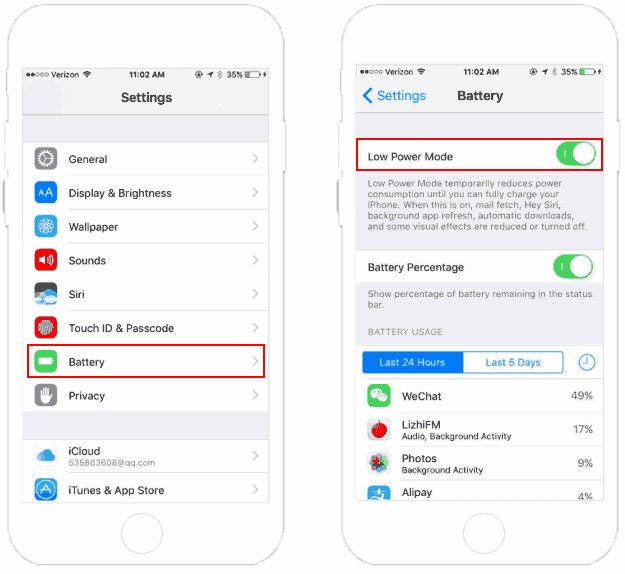
After disabling it, reopen the Camera app and test Live Photos again.
Method 03: Check Available Storage Space
Live Photos consume more storage than standard photos because they save both image and video data. Sometimes, due to a lack of adequate storage on your iPhone, Live Photos may fail to save correctly. To check storage:
Launch Settings, go to General.
Tap on “iPhone Storage”.
Review available space.
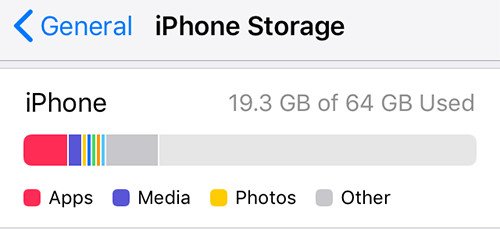
If your device doesn’t have enough storage, you need to immediately:
Delete unnecessary apps
Remove duplicate photos/videos
Remove old videos
Offload unused applications
Transfer files to iCloud or a computer
After freeing up storage, try capturing a new Live Photo.
Method 04: Disable and Re-Enable Live Photos
Sometimes, a simple restart can fix configuration-related problems on your iPhone. All you have to do is:
Launch the Camera app.
Tap the Live Photos icon to disable it.
After that, close the Camera app and then reopen it.
Once done, turn ON live photos and try capturing a few photos.
Method 05: Check Motion Settings
Certain accessibility settings may affect animations and visual effects on your iPhone. The Reduce Motion feature on your iPhone allows you to disable motion effects and excessive animations. If you’re getting no sound in live photos or encountering any other issue, check if the Reduce Motion feature on the iPhone is enabled. If yes, follow the below steps to disable it:
Launch the Settings app on your iPhone.
Tap on Accessibility > Motion.
Turn off the Reduce Motion option.
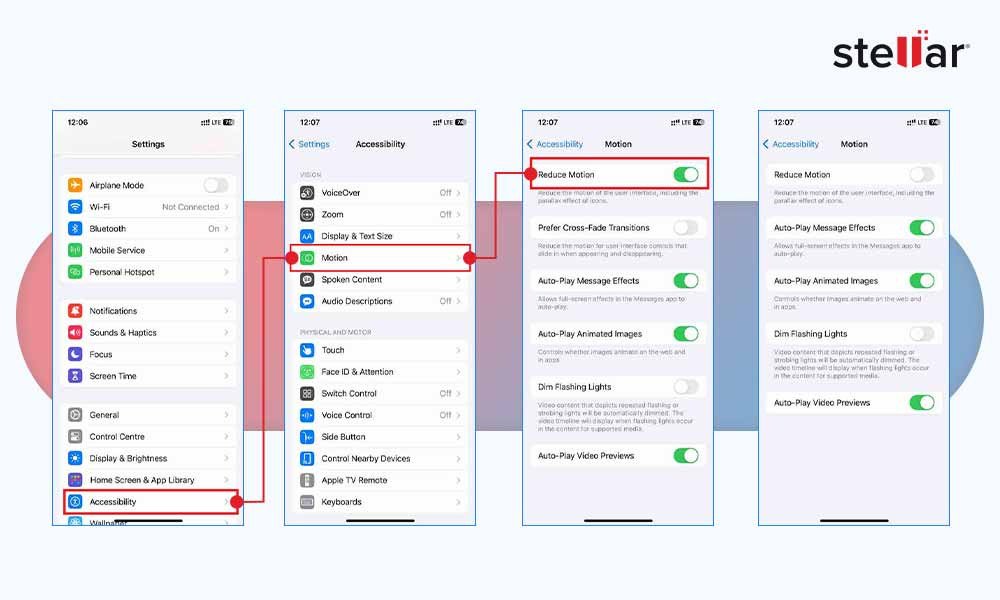
Although this setting does not directly disable Live Photos, it can sometimes affect how animations appear.
Method 06: Repair Corrupted Live Photos
In some cases, the Live Photo file itself may become corrupted and display errors like No sound in live photos, not opening at all, etc. Such issues usually happen due to interrupted transfers, failed updates, or storage issues. If the original Live Photo has become corrupted, you can either restore it from an iCloud backup or repair it using a professional online photo repair.
Tools like Stellar Repair for Photo Online allow you to fix corrupted photo files without requiring software installation. This web-based photo repair tool supports various photo formats and can help resolve issues caused by corruption, incomplete transfers, or storage-related problems.
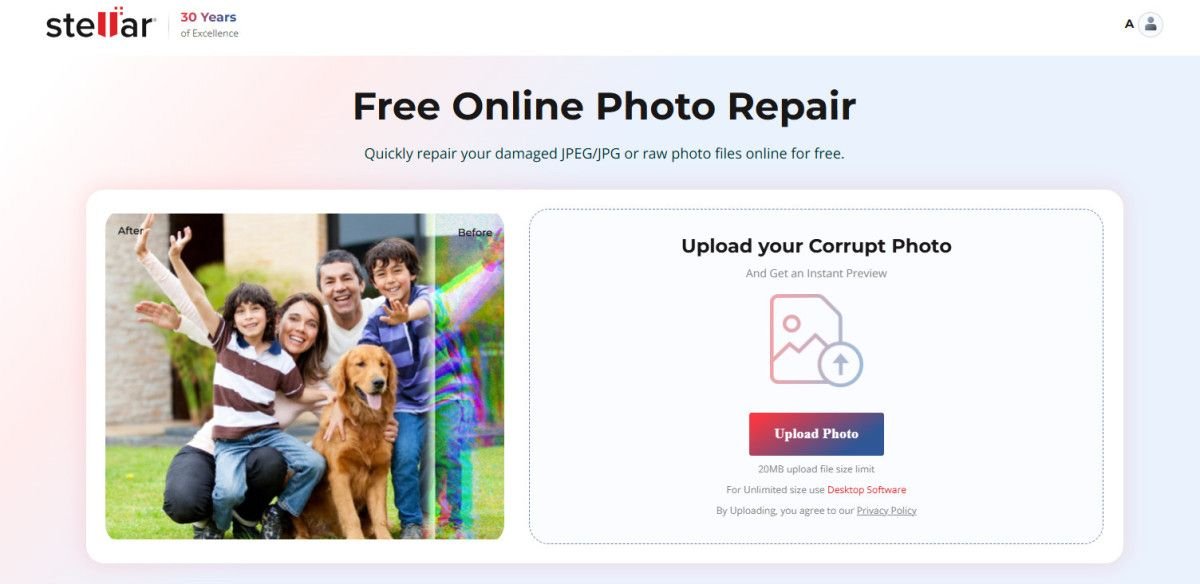
Here are some amazing key features of the Stellar Repair for Photo Online tool:
No need to install any third-party additional software
Repair corrupted or damaged photos in three simple steps
Accessible from Windows, Mac, iPhone, and other devices
Support repairing of photos of multiple file formats, including JPEG, PNG, TIFF, and many more.
Allows you to repair photos stored on SD cards, USB drives, and other internal/external storage media.
The Preview feature lets you preview the repaired photos before saving them on your device.
Tips to Prevent Live Photos Problems
Now that you’re familiar with different methods to fix live photos not working on iPhone, it’s time to check some preventive measures to avoid such issues in the future:
Keep iOS Updated: Install the latest iOS updates regularly to benefit from bug fixes, security patches, and performance improvements.
Maintain Sufficient Storage Space: Ensure adequate free storage is available so Live Photos can save and function properly without interruptions.
Regularly Back up Photos: Create frequent backups using iCloud or a computer to protect Live Photos from accidental loss.
Use AirDrop for Transfers: Transfer Live Photos via AirDrop to preserve both motion and audio components without quality loss.
Avoid Untrusted Third-party Camera Apps: Use reputable camera applications, as unsupported apps may affect Live Photo capture and compatibility.
Wrapping Up
Live Photos add motion, sound, and personality to your favourite memories, making them far more engaging than traditional images. If you encounter issues with Live Photos on your iPhone, go with the aforementioned repair fixes one by one to fix them. By following the solutions outlined in this guide, you can quickly restore Live Photos functionality and continue capturing life’s memorable moments exactly as they happen.
If the manual DIY methods fail to fix the Live Photos not working issue, try online photo repair software like Stellar Repair for Photo Online. Moreover, consider the mentioned preventive measures to avoid such live photo issues in the future.