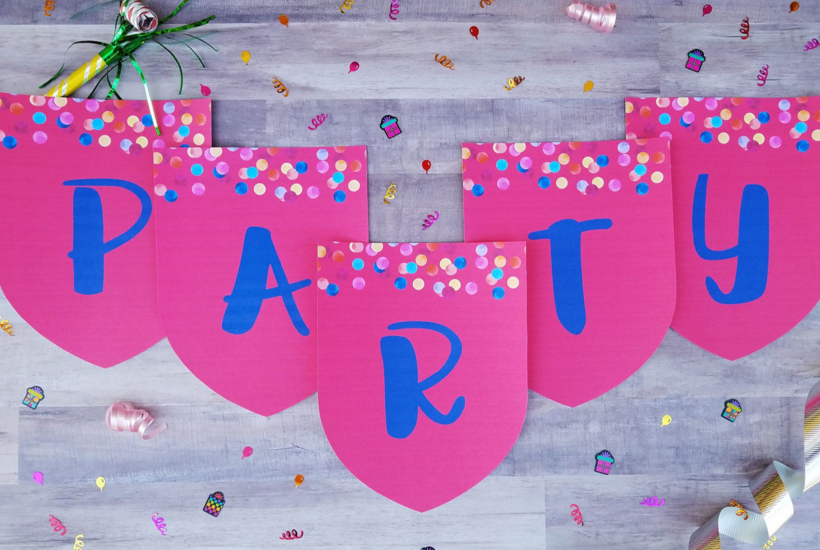
Every marketer and e-commerce operator has a folder full of product photos that were good enough last season but feel dated today. The lighting is flat, the background is wrong for the new campaign, or the overall aesthetic no longer matches the brand’s direction. The default assumption is that the fix requires a reshoot — booking a photographer, sourcing props, coordinating a studio day, and waiting a week for edited deliverables. That assumption is wrong, and the cost of acting on it compounds every time a visual refresh is needed.
There is a faster path, and it starts from the images you already have.
Why Reshooting Is Often the Slowest Fix
If you have ever sat in a creative review where the feedback was “can we just see a warmer background?” and then watched that single comment trigger a full production cycle, you already understand the problem. A reshoot does not just cost money — it costs time, alignment effort, and creative momentum. By the time the new images arrive, the campaign window may have shifted.
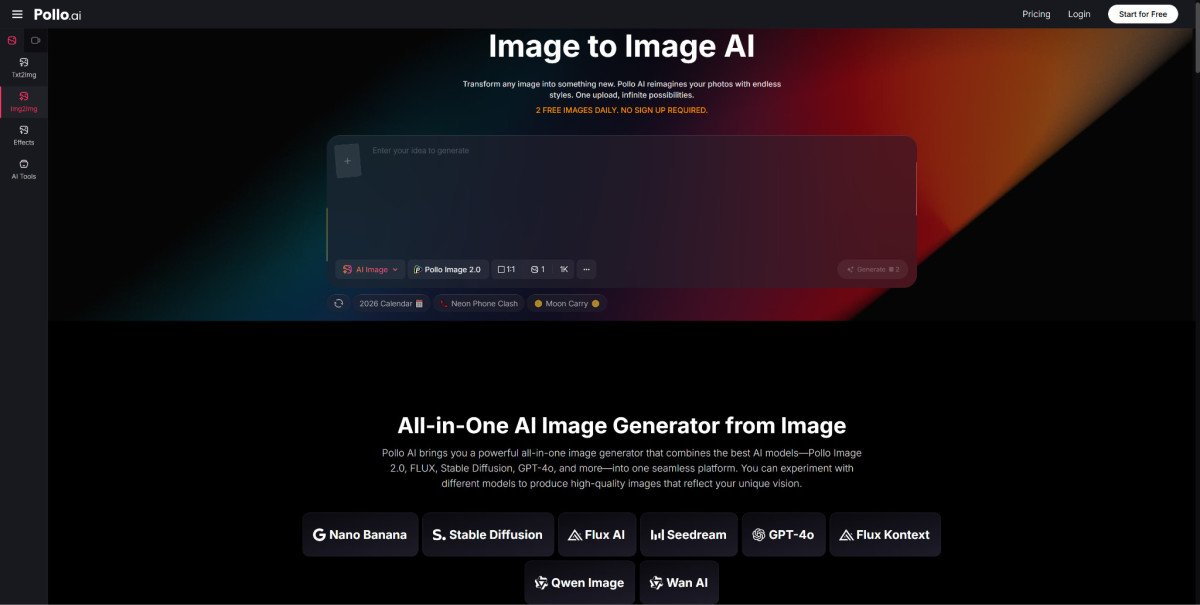
This is exactly the gap that Pollo AI is designed to close. The Pollo AI Image to Image tool lets you skip the shoot entirely. Instead of starting from a blank canvas or booking a new shoot, you upload the existing image and describe what you want to change using a plain text prompt. Want the same product on a clean white studio background instead of the original outdoor setting? Type it. Want the palette to shift from cool blues to warm earth tones for a seasonal campaign? Type it. The platform supports multiple models — including Pollo Image 2.0, FLUX, Stable Diffusion, and GPT-4o — and gives you access to more than 2,000 LoRAs for precise style targeting, so you are not guessing at outputs.
The three-step workflow keeps things practical: upload your source image, select the LoRA and enter a text prompt describing the change, then click Create. That is the entire process. No raw-file exports, no layer management, no briefing a retoucher.
How to Transform an Existing Image Without Losing the Core Subject
The most common anxiety about AI image transformation is that the tool will “drift” — that the subject will warp, the product proportions will shift, or recognizable details will disappear. The way to mitigate this is through prompt discipline, not through hoping the model gets it right.
Be specific about what should stay. If you want only the background to change, your prompt should explicitly describe the background rather than leaving it ambiguous. Vague prompts produce vague transformations. A prompt like “same product, matte white background, soft studio lighting, no shadows” gives the model clear constraints to work within.
Control the degree of change. Image-to-image generation works on a spectrum between tight adherence to the original and free transformation. If you are refreshing a hero product image for a new seasonal colorway, you may want a moderate transformation — new background and lighting, same product shape and perspective. If you are generating an entirely new scene around the same subject for a different use case, a freer transformation is appropriate.
Use LoRAs to match a target aesthetic. Rather than describing a visual style entirely through text — which can be imprecise — selecting a LoRA that matches your target aesthetic (clean commercial photography, editorial lifestyle, flat-lay minimalism) lets the model understand the direction at a level of specificity that text alone struggles to convey.
Using Text Prompts to Maintain Brand Consistency Across Versions
One of the underappreciated advantages of image-to-image generation over a reshoot is version control through prompt language. When you generate a background variation for Instagram, a cropped version for email, and a darker mood version for paid social using the same base image and a consistent prompt structure, you end up with a set of assets that share DNA. They were all derived from the same source, modified using the same prompt logic.
That is harder to achieve with a reshoot, where lighting shifts between frames, shadows fall slightly differently, and the post-processing from different editors introduces subtle inconsistency. With image-to-image, your prompt is the production brief, and it is repeatable.
Document your prompts as part of your creative templates. If you run quarterly visual refreshes, save the prompt strings alongside the source images so that next quarter’s update starts from a known baseline rather than from scratch.
Extending One Visual into Multiple Channel-Ready Assets
Once you have a transformed image you are happy with, the practical question is how far you can stretch it. A single approved visual can reasonably yield a suite of channel-specific variants without a return to the generation step.
For teams building multi-channel campaigns, it helps to think about the transformation layer and the adaptation layer as separate steps. Transformation is where image-to-image does the heavy lifting — changing background, color, mood, or style. Adaptation is the downstream work of resizing, cropping, and compositing for specific placements.
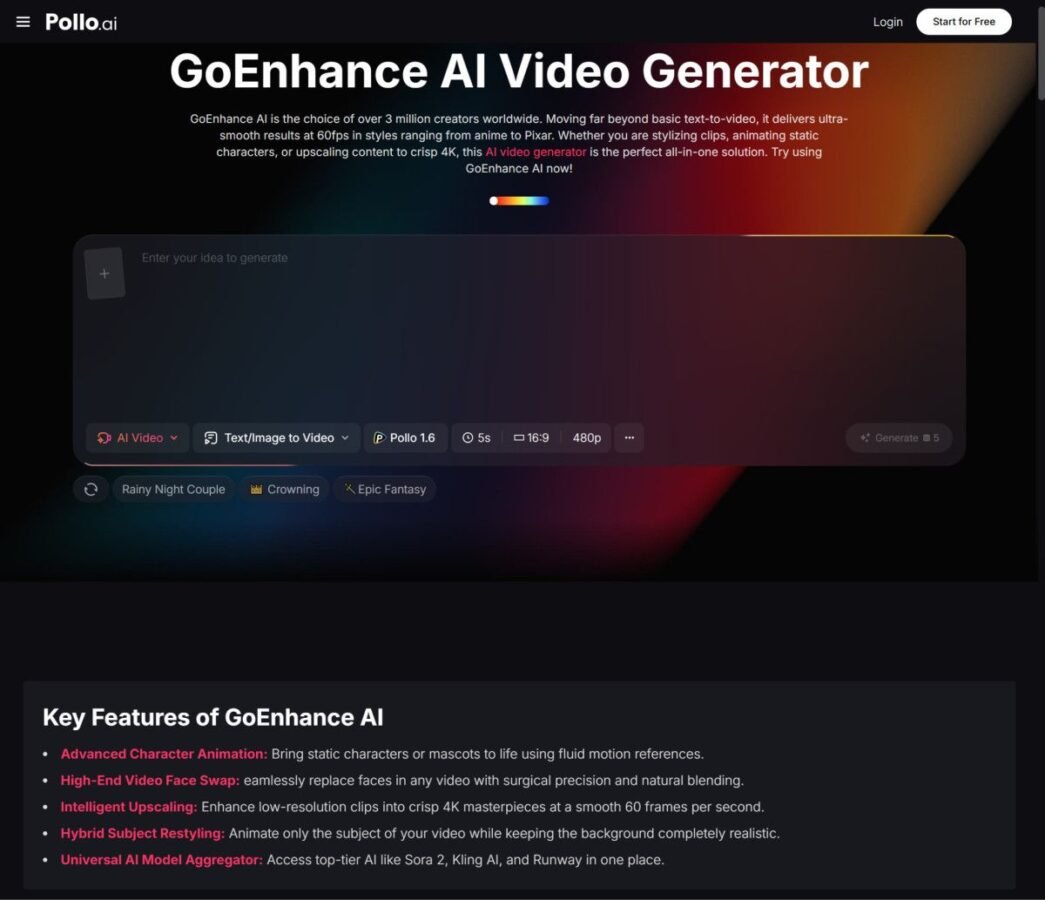
If you need to extend visuals further — for example, into enhanced image sets or additional animated asset variations — GoEnhance AI offers related capabilities worth exploring as part of your broader creative toolkit alongside Pollo AI.
The practical output for a single source image might look like: one hero asset for the website, two crop variants for social (square and vertical), one pared-back version with extra negative space for text overlay in an email header, and one darker, higher-contrast version for paid social testing. All of them descended from a single upload and a handful of prompt variants.
A Lean Workflow for E-Commerce, Marketing, and Design Teams
The teams that get the most value from image-to-image generation are the ones that integrate it early in their refresh cycles rather than treating it as a last-resort alternative to a reshoot that fell through.
Here is how a lean workflow looks in practice:
Audit your existing image library. Identify images where the subject is strong but the setting, lighting, or style is no longer fit for purpose. These are your candidates.
Define the target state before you generate. Write a brief prompt template — not a paragraph, a structured set of descriptors — before opening the tool. What background? What lighting? What mood? What should stay unchanged?
Generate, compare, and shortlist quickly. Run a few prompt variants, compare the outputs, and select the direction. This step replaces the internal alignment conversation that would otherwise happen after a reshoot brief is written but before the shoot takes place.
Adapt for placements. Take the selected output and crop or composite for the channel-specific formats your campaign requires.
Archive the prompt alongside the output. This is the step most teams skip, and it is the one that saves the most time in subsequent refresh cycles.
The reduction in production time compared to a full reshoot cycle is real. When the change you need is a background swap or a lighting adjustment rather than a completely new product in a completely new context, the reshoot is almost always the slower, more expensive option. Starting from the image you already have and describing the change you need is, in most cases, the faster and more controllable path.