Answer capsule: Minichat not available typically means the app is geo-restricted in your region, the server is down, your account is suspended, or device-level issues are blocking access. Most problems resolve with a regional App Store change, VPN workaround, cache clear, or network reset within minutes.
minichat not available — Minichat Not Available? Here’s How to Fix It
Minichat not available is one of those errors that hits differently depending on where you are and what you were doing — mid-conversation, mid-setup, or mid-download. The message can mean several different things: the app isn’t listed in your regional App Store, Minichat’s servers are experiencing downtime, your account has been restricted, or something on your device is quietly blocking access.
The frustration is real, and the fix isn’t always obvious because the cause isn’t always the same. A user in one country hitting a geo-restriction needs a completely different solution than someone whose Android cache has gone stale or whose account flagged a policy violation.
Four main categories cover the vast majority of Minichat availability problems: regional restrictions and app store blocks, server-side outages, account-level bans or suspensions, and device or network issues on the user’s end. Each has specific, actionable fixes — and knowing which category your problem falls into is half the battle. For more context on how Minichat works overall, see the complete MiniChat guide. The sections below break down exactly how to diagnose and resolve each one, across iOS, Android, and desktop browser.
Is Minichat Down Right Now, or Is It Just You?
Answer capsule: Before troubleshooting your device, check if Minichat’s servers are down globally using Downdetector and official social channels. If reports spike in the last hour and other apps work fine, a server-side outage is likely — meaning device fixes won’t help.
Before troubleshooting your device, rule out the simplest explanation: Minichat’s servers may be down for everyone. A widespread outage means no amount of reinstalling or cache-clearing will fix anything — you’d just be waiting. Knowing which scenario you’re in saves real time.
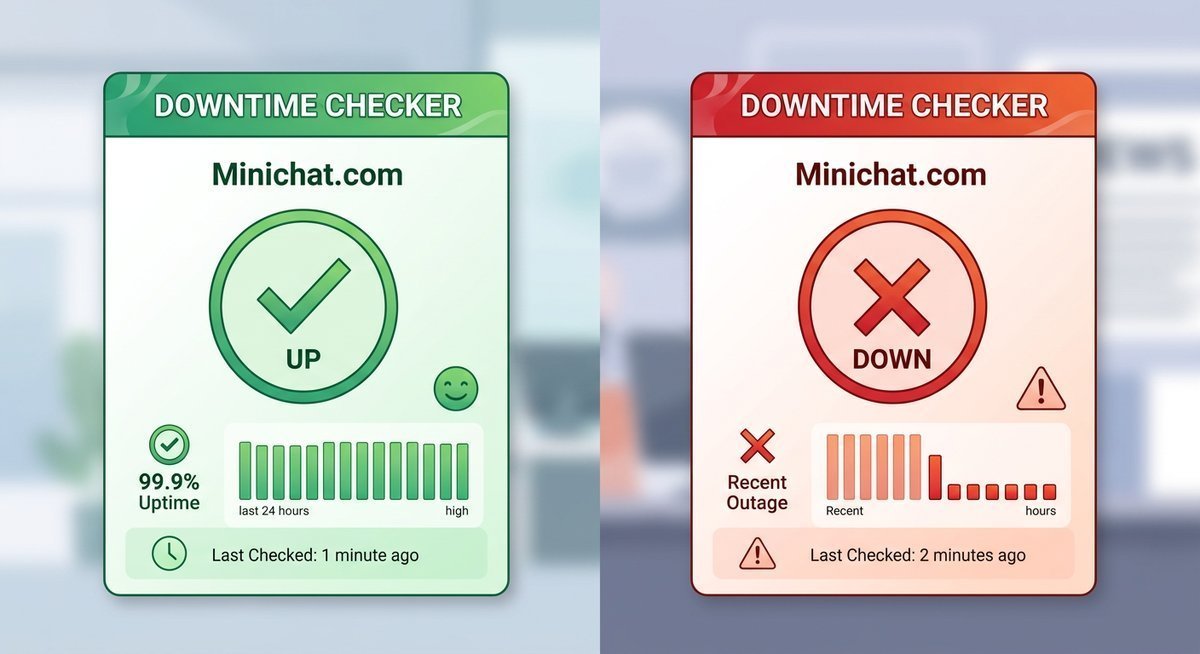
Screenshot mockup of a downtime-checker tool such as Downdetector showing Minichat’s status toggling between
How to Check Minichat’s Server Status
The fastest independent check is Downdetector, which aggregates real-time user outage reports and displays a spike graph showing when problems started. A sharp uptick in reports within the last 30–60 minutes is a strong signal that the issue is server-side, not yours.
Cross-reference with Minichat’s official social accounts — typically Twitter/X and Instagram — where the team occasionally posts service announcements during major disruptions. If neither platform shows any activity and Downdetector is quiet, the problem almost certainly lives on your end.
Most minor Minichat outages resolve within one to three hours based on historical patterns reported by users on community forums. Prolonged outages exceeding six hours are rare and usually accompanied by an official statement.
| Check Method | What It Tells You | Time Required |
|---|---|---|
| Downdetector | Live outage reports from other users | ~30 seconds |
| Minichat social media | Official service announcements | ~1 minute |
| Different network test | Isolates local connectivity as the cause | ~2 minutes |
Signs the Problem Is on Your End
A reliable tell: Minichat crashes or fails to load only on one specific device while other apps — including similar video-chat platforms — work without issue. That pattern points directly to a local problem, not a global outage.
VPN interference is a surprisingly common culprit. An active VPN can route your traffic through a server that Minichat’s infrastructure flags or throttles, making the app appear unavailable when it’s fully operational everywhere else. Disable your VPN temporarily and retry.
Switching from Wi-Fi to mobile data (or vice versa) is the quickest diagnostic test available. If Minichat loads immediately on a different network, your router or ISP connection is the issue — not Minichat itself.
Why Minichat May Not Be Available in Your Region
Answer capsule: Minichat geo-restrictions mean the app isn’t listed in your country’s App Store or Google Play due to regional content rules. The fix is changing your account’s country setting to a supported region or using a VPN to bypass app store blocks.
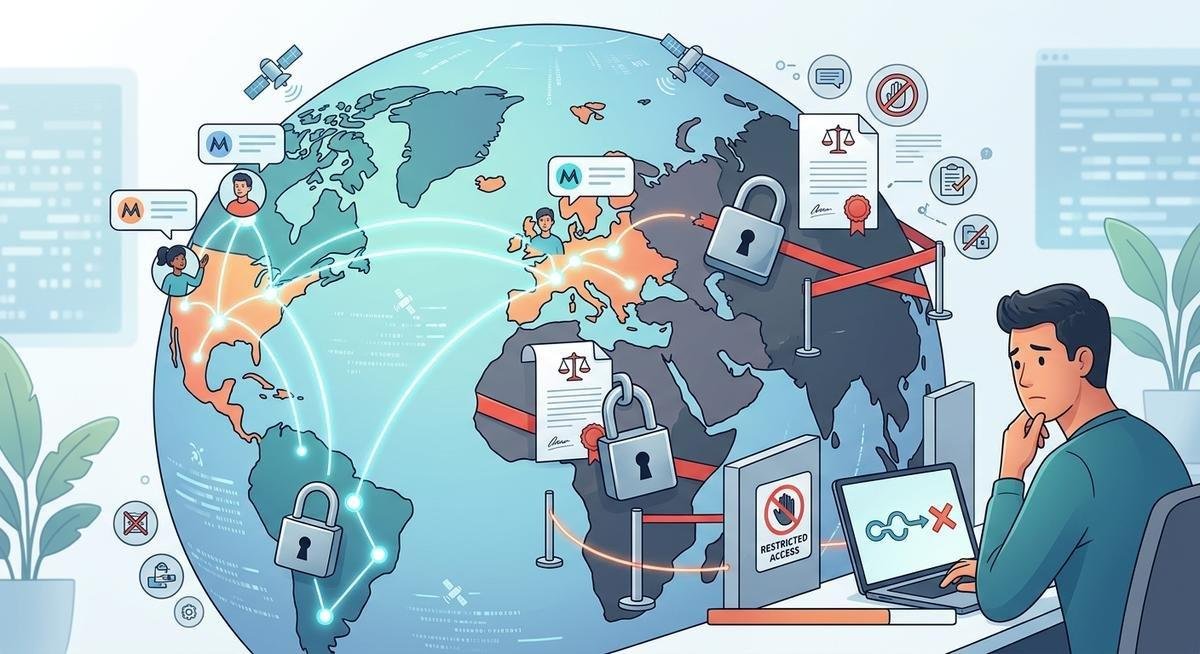
Geo-restrictions are the most overlooked cause of Minichat unavailability — and the one most users never think to check. Both the Apple App Store and Google Play Store enforce country-level content rules, meaning an app can be fully functional globally yet completely invisible to users in specific regions. If Minichat doesn’t appear in your store search at all, a regional block is almost certainly the reason.
Countries and Regions Where Minichat Is Restricted
Apple and Google both allow developers to select which countries their apps are distributed in — and they also respond to government removal requests. Countries with strict digital content regulations, particularly around social or adult-adjacent platforms, have a documented history of pressuring app stores to delist specific apps. Minichat, as a live video chat platform, falls into a category that regulators in certain regions scrutinize closely.
The clearest sign of a regional restriction is an App Store or Google Play page that returns no results — or a message stating the app “is not available in your country or region.” This is different from a server outage. The app isn’t down; it simply was never made accessible to your account’s registered location.
Your App Store country setting is tied to your Apple ID or Google account’s billing country — not your physical location. Changing that setting to a country where Minichat is listed can restore access to the download immediately.
| Platform | How Restriction Appears | Where to Check Your Region Setting |
|---|---|---|
| Apple App Store | “Not available in your country or region” | Settings → [Your Name] → Media & Purchases → Country/Region |
| Google Play Store | “This item isn’t available in your country” | Google Account → Payments & Subscriptions → Settings → Country |
| Browser (minichat.com) | Site loads but access may be restricted by local ISP | Try a different network or DNS resolver |
How to Access Minichat If It’s Geo-Blocked
Switching your App Store region is the cleanest fix for most users. On an iPhone, navigate to Settings → your Apple ID → Media & Purchases, then select a supported country. You’ll need a valid payment method for that region, or you can choose “None” in some cases. On Android, the process runs through your Google account’s country settings under Payments & Subscriptions.
A reputable VPN can also bypass geo-restrictions at the network level, making your connection appear to originate from a supported country. In practice, this works more reliably for browser access to minichat.com than for unlocking app store listings. One important caveat: using a VPN may technically violate Minichat’s terms of service, so review those before proceeding.
The browser version of Minichat is often the fastest workaround when the app itself is unavailable. No download required — and regional app store rules don’t apply to web access. If your ISP hasn’t blocked the domain directly, minichat.com should load regardless of your app store’s country setting.
Step-by-Step Fixes for Minichat Not Working on Your Device
Answer capsule: Device-level Minichat errors usually resolve by force-closing the app, clearing cache and data, updating or reinstalling from the app store, resetting network settings, or switching from Wi-Fi to mobile data. Work through these steps sequentially for fastest resolution.
Most Minichat availability problems at the device level resolve within five minutes using one of the fixes below. The sequence matters — start at Step 1 and work forward, because the earlier steps catch the most common causes before you escalate to more involved solutions.
Fix for iOS (iPhone/iPad) Users
A force-close clears any frozen process that’s causing the app to hang — it’s the fastest first move and costs nothing to try.
- Force-close and reopen the app. Swipe up from the bottom of the screen (or double-press the Home button on older models) to open the app switcher, then swipe Minichat off the screen. Relaunch it fresh.
- Check for pending app updates in the App Store. Open the App Store, tap your profile icon, and scroll to see if Minichat has an available update. Outdated builds are a surprisingly common cause of sudden access failures after Apple pushes iOS patches.
- Delete and reinstall Minichat. Press and hold the app icon, select Remove App, then reinstall from the App Store. This clears corrupted local data that a simple update won’t touch.
- Verify iOS version compatibility. Navigate to Settings → General → About to confirm your iOS version. Minichat periodically drops support for older iOS builds — if your device can’t update past a deprecated version, the browser version at minichat.com is a viable fallback.
- Reset network settings if the connection is the culprit. Go to Settings → General → Transfer or Reset iPhone → Reset → Reset Network Settings. This clears saved Wi-Fi passwords and VPN configurations that may be interfering with Minichat’s servers. For more help with iOS-specific issues, Apple’s official troubleshooting page offers additional diagnostics.
Fix for Android Users
Android gives users more direct access to app internals than iOS does, which means the cache-clearing step alone fixes a large share of “Minichat not available” errors on Android devices.
- Clear Minichat’s app cache and data. Go to Settings → Apps → Minichat → Storage, then tap Clear Cache first. If the problem persists, tap Clear Data — note this logs you out and removes local settings.
- Update the app via Google Play. Open Google Play, search for Minichat, and check whether an update is waiting. Skipped updates frequently break authentication and chat loading on Android.
- Check Google Play availability in your region. If the Play Store shows “This app isn’t available in your country,” your Google account’s country setting may need to match a supported region. Go to play.google.com on desktop, then Payments & Subscriptions → Budget & History to review your account region.
- Uninstall and reinstall. A clean install resolves conflicts left behind by failed updates or interrupted downloads.
- Sideload the APK from Minichat’s official site. If the Play Store blocks installation entirely due to regional restrictions, Minichat’s official website offers a direct APK download. Enable installation from unknown sources under Settings → Security first, and only use the official source — third-party APK mirrors carry real malware risk.
Fix for Desktop/Browser Users
Browser-based Minichat access fails for different reasons than the app does — cached credentials, aggressive extensions, and network-level blocks are the usual suspects.
- Clear browser cache and cookies. In Chrome or Firefox, navigate to Settings → Privacy → Clear Browsing Data, then select cookies and cached files. Restart your browser afterward.
- Disable browser extensions temporarily. Ad blockers and privacy extensions like uBlock Origin or Privacy Badger sometimes interfere with WebRTC connections Minichat relies on for video streaming. Test with extensions disabled.
- Try an incognito or private browsing window. This isolates whether your saved session data or active extensions are causing the block.
- Switch DNS servers. Network-level restrictions may block minichat.com at the ISP level. Switching to a public DNS like Google DNS (8.8.8.8) or Cloudflare DNS (1.1.1.1) can bypass local filtering.
- Test with a different browser. If Minichat loads in Safari but not Chrome, the problem is browser-specific configuration, not Minichat’s platform.
Account-Related Reasons Minichat Is Unavailable to You
Answer capsule: Account-level unavailability happens when Minichat suspends or bans your profile due to guideline violations, age verification failures, or failed subscription payments. Check your email for ban notices and review account settings for payment or verification prompts before troubleshooting hardware.
Sometimes Minichat isn’t unavailable to everyone — just to you. If the app loads fine on a friend’s phone but you’re hitting a wall, the problem almost certainly lives in your account, not the platform. Bans, suspensions, age restrictions, and lapsed subscriptions are the four most common culprits, and each one has a different fix path.
Bans, Suspensions, and Age Restrictions
Minichat enforces community guidelines that can result in temporary suspensions or permanent bans — often triggered by reported behavior, spam activity, or content violations. A suspended account typically receives an email notification, so check your inbox (including spam) before assuming the issue is technical.
Age restrictions are a separate layer entirely. Minichat requires users to be at least 18 years old, and accounts flagged during verification may be locked until identity confirmation is completed. In practice, users who signed up without proper age verification occasionally find access revoked retroactively when the platform runs compliance checks.
Payment and Subscription Access Issues
Certain Minichat features are gated behind a paid subscription. A failed payment, expired card, or disputed charge can restrict access to premium functions — and in some cases lock the account interface entirely. Checking your billing status directly through the Minichat account settings page is the fastest way to confirm this.
| Restriction Type | Typical Cause | Resolution Path |
|---|---|---|
| Temporary suspension | Community guideline violation | Wait out the suspension period; appeal via support email |
| Permanent ban | Repeated or severe violations | Submit a ban appeal through Minichat’s official support portal |
| Age restriction lock | Failed or incomplete age verification | Complete identity verification as prompted in account settings |
| Payment/subscription failure | Expired card or failed billing | Update payment method in account billing settings |
If you believe a ban or suspension was applied in error, Minichat’s support team can be reached through the in-app help center or via their official contact page. Document any relevant context before reaching out — appeals with specifics move faster than vague requests.
Frequently Asked Questions About Minichat Availability
Why is Minichat not available in my country?
Minichat may not appear in your country’s App Store or Google Play due to regional content regulations or developer distribution choices. Governments with strict social media rules sometimes request removal of live video chat apps. To check your account’s registered country, go to Settings → [Your Name] → Media & Purchases on iOS or Google Account → Payments & Subscriptions on Android. Changing your account region to a supported country can restore access.
Why is Minichat not showing up on the App Store?
If Minichat doesn’t appear in App Store search results, your Apple ID is likely registered to a region where the app isn’t distributed. Navigate to Settings → your Apple ID → Media & Purchases → View Account → Country/Region to confirm. You can switch to a supported country, but you’ll need a valid payment method for that region or select “None” if available. Alternatively, try accessing Minichat through your mobile browser at minichat.com as a workaround.
Was Minichat removed from the App Store?
Minichat has not been globally removed from the App Store, but it may be delisted in specific countries due to local regulations. If you previously downloaded Minichat and it’s now gone from your purchase history, your Apple ID’s country setting may have changed. Check Downdetector and Minichat’s official social channels for any announcements regarding regional removals or temporary takedowns.
Why is Minichat not working even though I can open the app?
If Minichat opens but won’t load chats, connect to video calls, or displays a black screen, start by force-closing the app and relaunching it. On iOS, swipe up to access the app switcher and close Minichat; on Android, go to Settings → Apps → Minichat → Force Stop. Next, check your internet connection by switching between Wi-Fi and mobile data. Clear the app’s cache (Android: Settings → Apps → Minichat → Storage → Clear Cache), update to the latest version, and if issues persist, delete and reinstall the app completely.
What do Minichat error messages mean?
Common Minichat error messages include “You have denied access” (camera/microphone permissions disabled), “Minichat is not available” (geo-restriction or server issue), “Connection failed” (network problem or VPN interference), and “Account suspended” (guideline violation). For permission errors, go to device Settings → Privacy → Camera/Microphone and enable access for Minichat. Connection errors typically resolve by disabling VPNs, switching networks, or resetting network settings. Account suspension errors require checking your email for official notices and potentially contacting Minichat support.
Why does Minichat show a black screen?
A black screen in Minichat usually indicates a camera permission issue, corrupted app data, or outdated app version. First, verify camera permissions in your device settings (iOS: Settings → Privacy → Camera; Android: Settings → Apps → Minichat → Permissions). Force-close and reopen the app, then check for updates in your app store. If the black screen persists, clear the app cache on Android or delete and reinstall on iOS. Also confirm your device’s OS version is compatible with the latest Minichat build.
How do I fix “You have denied access” in Minichat?
The “You have denied access” error means Minichat can’t use your camera or microphone because permissions are disabled. On iOS, go to Settings → Privacy → Camera (or Microphone) and toggle Minichat on. On Android, navigate to Settings → Apps → Minichat → Permissions and enable Camera and Microphone. After enabling permissions, force-close Minichat completely and relaunch it. If the error persists after granting permissions, reinstall the app to reset permission states.
Why isn’t Minichat connecting to calls?
Connection failures during video calls are typically caused by weak network signal, VPN interference, or firewall restrictions. Switch from Wi-Fi to mobile data (or vice versa) to test network stability. Disable any active VPN temporarily, as Minichat’s servers may throttle or block VPN traffic. Check if your router or workplace network has firewall rules blocking WebRTC ports used for video streaming. As a last resort, reset your device’s network settings (iOS: Settings → General → Reset → Reset Network Settings; Android: Settings → System → Reset Options → Reset Wi-Fi, mobile & Bluetooth).
Conclusion
Minichat availability issues almost always trace back to one of four root causes: regional app store restrictions, server-side outages, account-level blocks, or device-specific configuration problems. The diagnostic process outlined in this guide — checking server status first, verifying regional availability, clearing device cache and reinstalling, and finally reviewing account status — covers the overwhelming majority of real-world scenarios users encounter.
The single most overlooked fix remains the regional App Store setting. Users frequently assume an app has been removed globally when it’s simply not distributed in their account’s registered country. Switching your Apple ID or Google account region to a supported location restores access immediately in most cases, with no technical troubleshooting required.
For persistent issues that don’t resolve through these steps, Minichat’s official support channels remain the best path forward. Document the exact error message, device model, OS version, and steps you’ve already tried before reaching out — detailed reports get faster, more accurate responses from support teams. And when all else fails, the browser version at minichat.com bypasses app store restrictions entirely, offering a functional fallback while you resolve deeper account or device issues — or consider switching to a tested Minichat alternative if access remains permanently blocked in your region.